TL;DR
- A talk clips channel turns talks and keynotes you have rights to into short, shareable vertical clips.
- It is a ready-made template that runs on naïve: an agent team does the work and you approve what goes out.
- You set a daily cap per agent and per task, and work is priced before it runs.
- To start, sign up for a naïve account, then deploy the Talk Clips Channel template.
A talk clips channel is a ready-made naïve template: an AI agent team, running on naïve, turns talks you have rights to into vertical clips.
The agents find the quotable moments, cut them vertical, and caption them. Every clip waits for your approval before it posts.
Step one is a naïve account. Then you deploy the template.
What is a talk clips channel?
It is one ready-made company template, not a pile of tools you wire together. When you deploy it, naïve sets up — in a single step — a small team of AI agents, a dashboard to manage the clip queue, your connected posting accounts, and the budgets those agents run under. It is built on the clipping channel, so the team already knows the job: find the moment, cut it clean, caption it, queue it.
Each clip follows the same recognisable shape:
- One idea, not a highlight reel — the reveal, the quotable answer, or the demo moment.
- Vertical, speaker in frame, so the crop never loses who is talking.
- Captions burned on and a title plus hashtags drafted for the feed.
What do you need before you start?
You do not need much, and that is the point. Three things make the first week go better:
- Recordings you have rights to. Your talks, your company's keynotes, panels you ran, launches you own.
- A point of view. "Founder lessons," "product reveals," "the best Q&A answers" — a channel with an angle beats one that posts everything.
- A cadence you will actually approve at. A few clips a day you review beats a flood you ignore.
How do you set it up?
Setup is a short interview, not a configuration screen. Here is the whole shape before you touch it:
01
Sign up for naïve
Create your naïve account at app.usenaive.ai. The template runs inside it.
02
Open the company
Start from the Talk Clips Channel. It is built on the clipping channel, so the team knows the format on day zero.
03
Name your sources
Point it at the talks, keynotes, and launches you have rights to, and set your cadence.
04
Agents clip
On your schedule, they find the moments that stand alone, cut them vertical, and caption them.
05
You approve
Each finished clip waits in a queue with its caption. Approving is the only way it posts.
1. Sign up for a naïve account
Create your naïve account. The template, its agents, and their budgets all run inside it.
2. Open the Talk Clips Channel
From your naïve account, start from the company page and deploy the template. Because it is built on the clipping channel, the team of AI agents arrives already knowing how to find a quotable moment and cut it — you are not teaching it what a clip is, you are pointing it at your recordings.
3. Name the recordings and your cadence
The team asks you for two things before it sets anything up:
- Sources — the talks, keynotes, and launch recordings to clip from, which must be ones you have the rights to.
- Cadence — how often you want to post.
What angle does your talk clips channel take?
The agents read this before every run, so a sharp angle pulls better moments than 'clip everything'.
- Product reveals — the moment the thing is shown
- Founder lessons — the hard-won line people repeat
- Best Q&A answers — the sharp reply from the room
- Everything — every talk, no single lane
These answers become the project context every agent reads at the start of every run, and you can edit them later. Add a new keynote in week three and the next batch pulls from it.
4. Let the team cut the first clips
On the schedule you set, the timers fire and the team goes to work. There is no always-on loop burning money between runs — nothing runs until the next scheduled run fires. When a timer fires, the team:
- Scans each recording for the lines that land on their own, not the whole talk.
- Cuts each moment vertical with the speaker in frame and captions on.
- Writes the title and hashtags, drafted against each clip.
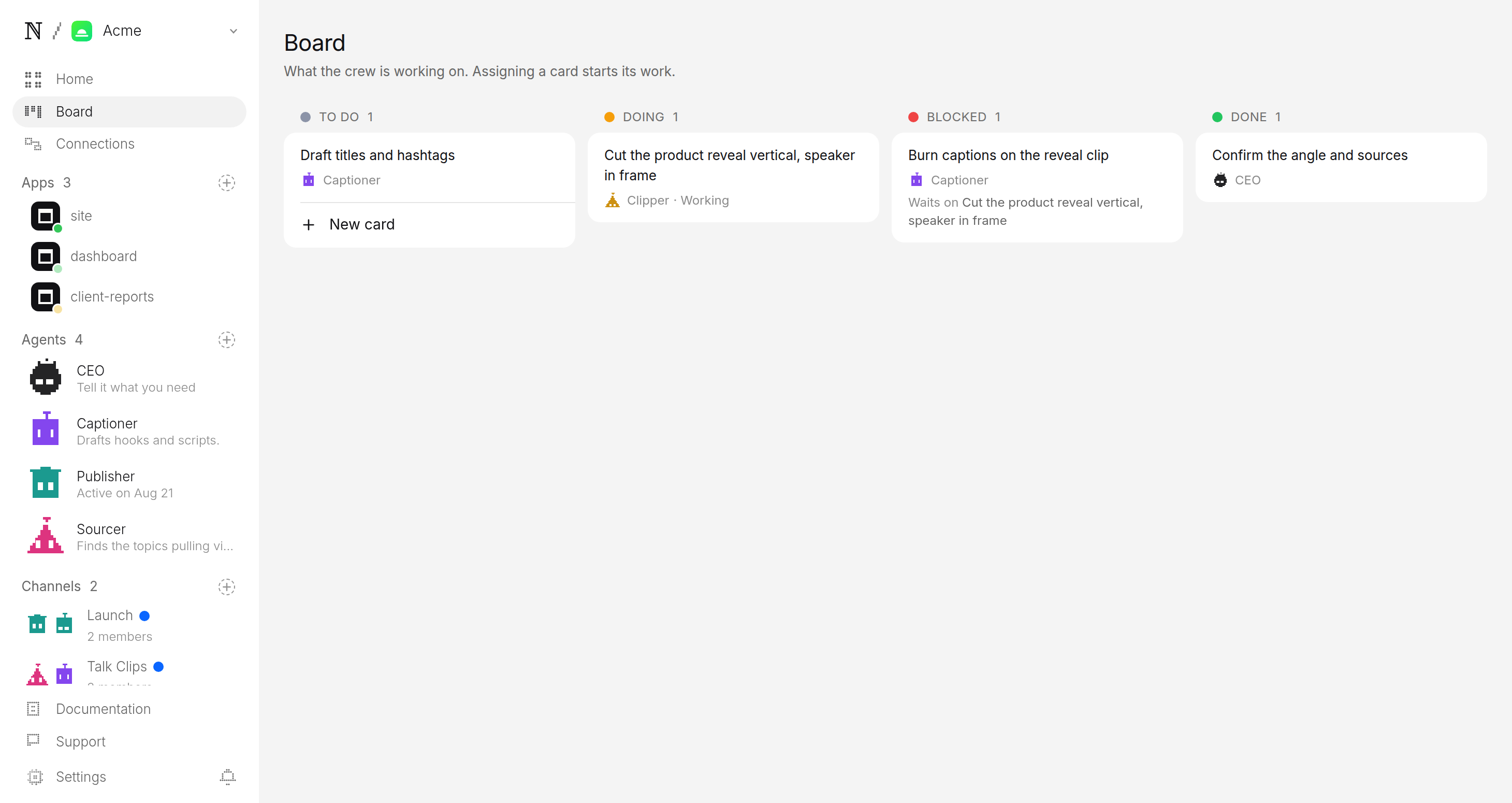
If the queue is already ahead of you, it makes nothing. The backlog is treated as a signal to stop, not a number to grow.
5. Approve before anything posts
This is the step that matters most. Every finished clip is filed as a pending post, not a published one. It lands in a review queue with its clip ready to play, its caption drafted, and where it is queued to go.
You watch it, edit the caption if you want, and approve or hold. Approving is the only path onto TikTok, Reels, or Shorts — there is no setting that lets a clip skip you.
Publisher wants to post to TikTok, Instagram and YouTube
- Caption
- The reveal that got the loudest gasp in the room. 🎤 #keynote #founder #startup
- Goes out
- Tomorrow 4:22 PM ET
- Visibility
- Public
How does one clip fit three platforms?
The output is a single vertical file that fits every short-video surface, so you are not re-cutting for each app:
| Platform | Surface | Clip spec | Tuned per app |
|---|---|---|---|
| TikTok | For You feed | 9:16 vertical, 15–60s, captions burned on | Caption and hashtags for the feed |
| Reels | Same vertical file, no re-cut | Caption tuned for Reels | |
| YouTube | Shorts | Same vertical file, no re-cut | Title tuned for Shorts |
Post the same clip to all three, or pick the ones your channel uses at setup. Either way, each post still parks in approval first.
What keeps the channel in your control?
Two guarantees sit under everything the agents do, and both are enforced by the platform rather than by the model's good behaviour:
- A budget it cannot raise. You set a daily cap per agent and a cap per task. Every run is priced before it starts, and a batch that would blow the cap stops instead of spending.
- A queue it cannot skip. The agents work the week — scanning, cutting, captioning, titling — but the account itself is yours. The pending queue is the only door out.
If you clip from a different kind of source, the podcast clips channel finds the stories and takes in your episodes, and the broader AI clipping channel covers any footage you have rights to. The approval and budget rules in this guide are identical across all of them — see how human approval works for the mechanism that sits under every channel.
FAQ
- What can a talk clips channel clip from?
- Only the recordings you name and have the rights to — your own talks, your company's keynotes, panels you ran, or launch events you own. The agents never pull from footage you did not point them at, so every clip is sourced from material you control.
- How does it decide which moments to clip?
- It looks for the lines that stand on their own without the rest of the talk: the reveal, the quotable answer, the demo moment, the one sentence people repeat. A long keynote usually yields a handful of clips, each a single idea in 15 to 60 seconds.
- Do the clips work with the sound off?
- Yes. Each clip is cut vertical with the speaker kept in frame and captions burned on, so it reads in a silent feed. The agents also draft a title and hashtags tuned for each platform before the clip reaches your queue.
- What does it cost to run?
- You set a daily cap per agent and a cap per task at setup, and the platform prices the work before it runs. A batch that would exceed the cap stops instead of spending, so the channel cannot surprise you on cost.