TL;DR
- A podcast clips channel turns episodes you own into short vertical clips for TikTok, Reels, and Shorts.
- It is a ready-made template that runs on naïve: an agent team cuts each clip and you approve what posts.
- Each agent runs under a daily cap you set, and a batch that would exceed it stops.
- To start, sign up for a naïve account, then deploy the Podcast Clips Channel template.
A podcast clips channel is a ready-made naïve template that turns episodes you own into captioned vertical clips.
An agent team running on naïve finds the moments that stand on their own, cuts them vertical, and queues each one. Nothing posts until you approve it.
Step one is a naïve account. Then you deploy the template and name your podcasts.
What is a podcast clips channel?
It is a ready-made naïve company template, not a pile of tools you wire together yourself. Deploying it sets up — in one step — a small team of AI agents, a dashboard app to manage the clip queue, your connected posting accounts, and the budgets those agents run under. Podcast Clips is built on the clipping channel — the same underlying setup that turns long-form into clips — pointed at your episodes.
Each clip follows the same recognisable shape:
- One idea. A story, a take, or a laugh that makes sense without the rest of the episode.
- Vertical, speaker in frame. It keeps whoever is talking in frame when it crops to 9:16.
- Captions on. So it reads with the sound off, which is how most short video is watched.
- Title and hashtags drafted, ready for you to tweak before it goes out.
It only clips from podcasts you own or have permission to clip. A clip from any source you did not name is a rights problem, so the agents stop instead of guessing.
What do you need before you start?
You do not need much, and that is the point. Still, three things make the first week go better:
- Your source list. The podcasts you own or have permission to clip — your own show, or ones you have cleared.
- The accounts to post to. TikTok, YouTube Shorts, Instagram Reels, or whichever subset you run.
- A cadence you will actually approve at. A few strong clips per episode you review beats a flood you ignore.
How do you set it up?
Setup is a short interview, not a configuration screen. Here is the whole shape before you touch it:
01
Sign up for naïve
Create your naïve account at app.usenaive.ai. The template runs there.
02
Deploy the template
Start from the Podcast Clips Channel. Deploying it sets up the agent team, dashboard, posting accounts, and budgets in one step. It is built on the clipping channel, so the team knows how to find, reframe, and caption on day zero.
03
Name your sources
Point it at the podcasts you own or may clip, choose the accounts it posts to, and set your cadence. That is the brief.
04
Agents cut
On your schedule, they check for new episodes, pick the moments that stand alone, and cut each to vertical with captions.
05
You approve
Each finished clip waits in a queue with its caption. Approving is the only way it posts.
1. Sign up for a naïve account
Create your account at app.usenaive.ai. The template deploys and runs on naïve.
2. Open the Podcast Clips Channel
Start from the company template page and deploy it. Deploying it sets up the agent team, the clip dashboard, your connected posting accounts, and the budgets in one step. Because it is built on the clipping channel, the agent team arrives already knowing how to rank the clip-worthy moments, keep the speaker in frame, and caption for sound-off — you are not teaching it what a clip is, you are pointing it at your episodes.
3. Name your sources and cadence
The team asks you three things before it sets anything up:
- Sources — the podcasts you own or have permission to clip.
- Accounts — where clips post: TikTok, Shorts, Reels, or a subset.
- Cadence — how often you want new clips.
What kind of moments should your podcast clips lead with?
The agent team reads this before every run, so a sharp lane beats clipping everything.
- Hot takes — the opinions that start arguments
- Stories — the self-contained anecdotes that land
- Big laughs — the moments the room cracked up
- A mix — pull the best of each episode
These answers are not thrown away after setup. They become the project context every agent reads at the start of every run, and you can edit them later. Add a second show in week three and the next batch starts clipping it.
4. Let the team cut the first batch
On the schedule you set, each scheduled run starts and the team goes to work. There is no always-on loop between episodes — nothing runs until the next scheduled run, when the team:
- Checks the sources you named for new episodes, and works the back catalogue too, not just the newest upload.
- Picks the stories, hot takes, and laughs that carry on their own — a few per episode, the ones it ranks highest for standing alone rather than everything.
- Cuts each one vertical with the speaker in frame, captions on, and a title and hashtags drafted against it.
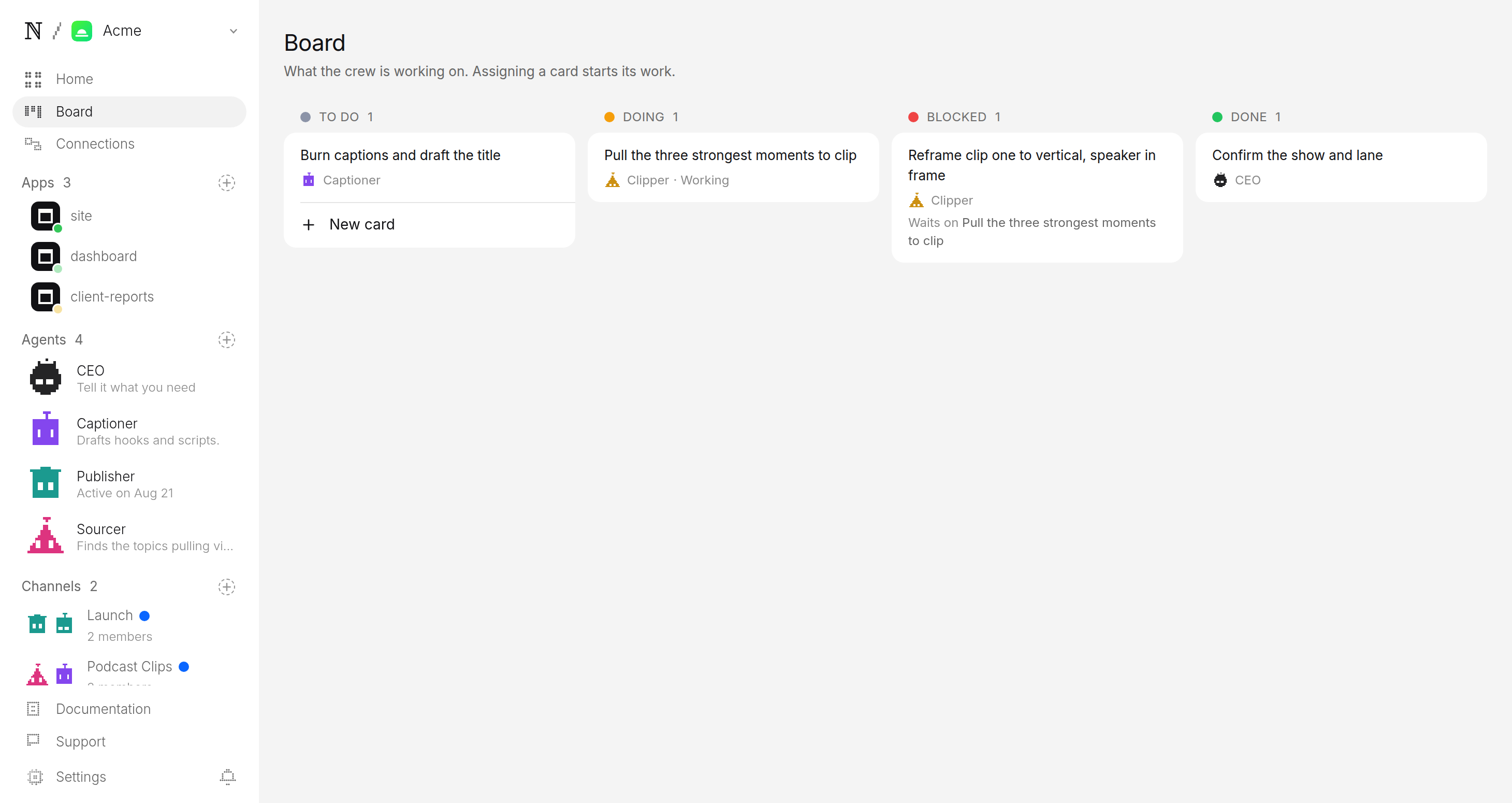
If the queue is already ahead of you, it makes nothing. The backlog is treated as a signal to stop, not a number to grow.
5. Approve before anything posts
This is the step that matters most. Every finished clip is filed as a pending post, not a published one. It lands in a review queue with three things attached:
- The clip, ready to play.
- The caption, title, and hashtags, drafted in your channel's voice.
- Where and when it is queued to go.
You watch it, edit the caption if you want, and approve or hold. Approving is the only path onto TikTok, Reels, or Shorts.
Publisher wants to post to TikTok, Instagram and YouTube
- Caption
- The take that split the whole room 🎙️ #podcast #clips #hottake
- Goes out
- Tomorrow 4:22 PM ET
- Visibility
- Public
Is it faster than clipping episodes by hand?
Yes, and that gap is the whole reason the format exists. Each clip is a single vertical file that fits every short-video surface, so you are not re-cutting for each app. The difference is in the work it takes to get there:
| Metric | By hand | Podcast Clips Channel |
|---|---|---|
| Hours per episode | 2–3 hours watching and cutting | minutes of review; the cutting is the agents' |
| Clips per episode | one or two, when you have the time | a few of the strongest moments, each scheduled run |
| Cost signal | your afternoon, uncapped | priced per run against a cap you set |
| Time to post | days after the episode drops | your next scheduled run plus one tap |
Post the same clip to TikTok, Reels, and Shorts, or pick the accounts your channel uses at setup.
What keeps the channel in your control?
Two guarantees sit under everything the agents do, and both are enforced by the platform rather than by the model's good behaviour:
- A budget it cannot raise. You set a daily cap per agent and a cap per task. Work is priced before it runs, and a batch that would blow the cap stops instead of spending. The channel cannot surprise you on cost.
- Sources it cannot stray past. The agents cut only from the podcasts you named; a clip from anywhere else is a rights problem, so they stop instead of guessing.
What does the first week look like?
A realistic first week looks like this. Sign up for naïve, deploy the company template, name your sources, and set a cadence. Let the first batch build after the next episode drops. In the morning, open the queue, watch a handful of clips, and approve the two or three that are genuinely good. Repeat. By the end of the week you will have a feel for which moments land, and you can tune the setup answers to chase them.
If you want to run the same kind of setup on a different source, the Talk Clips Channel cuts talks and launches into the lines people share, and the base clipping channel lets you point it at any long-form you hold the rights to. For a closer look at the clipping engine underneath, see how to start an AI clipping channel; the way it handles rights and budget is identical across all of them.
FAQ
- Do I need permission to clip the podcasts?
- Yes, and the channel is built around that. It only clips from podcasts you own or have permission to clip, and it never reaches for a source you did not name. That keeps every post rights-safe instead of a guess.
- How many clips does it make per episode?
- A few per episode. The agents rank the clip-worthy moments and cut only the strongest, so each clip is one idea in roughly 15 to 60 seconds, captioned to work with the sound off. Quality over volume is the default, and the back catalogue gets worked through, not just the newest upload.
- Does anything post without me seeing it?
- No. Every clip is filed as a pending post and waits in a review queue with its caption written. Approving is the only path onto your accounts, and there is no setting that lets a clip skip you.
- What does it cost to run?
- You set a daily cap per agent and a cap per task at setup, and the platform prices work before it runs. A batch that would exceed the cap stops instead of spending, so the channel cannot surprise you on cost.
- Can it clip a back catalogue of old episodes, not just new ones?
- Yes. On each scheduled run the agent team works through the archive you named as well as new uploads, so a library of past episodes becomes a backlog of clips to approve rather than something you re-watch by hand. Point it at the whole catalogue at setup, or add shows later and the next run starts clipping them.