TL;DR
- A news clips channel posts the one moment that explains a story as a captioned vertical clip.
- It is a ready-made template that runs on naïve: an agent team cuts each clip, and you approve what posts.
- If the team cannot confirm the rights to a clip, it flags it and does not post it.
- To start, sign up for a naïve account, then deploy the News Clips Channel template.
A news clips channel is a ready-made template that runs on naïve: an agent team cuts the moment that explains each story into a vertical clip.
It clips only from sources you have the rights to, and captions each clip for sound-off viewing.
Step one is a naïve account. Then you deploy the template, and every clip waits for your approval before it posts.
What is a news clips channel, exactly?
It is a ready-made naïve company template, not a stack of editing tools you wire together yourself. Deploying it sets up — in one step — a small team of AI agents, a dashboard app to manage the clip queue, your connected posting accounts, and the budgets those agents run under. The news version is built on naïve's clipping channel — the same underlying setup, with a news skill added so the team already knows how to find and cut a moment.
Each clip follows the same recognisable shape:
- One story, one moment. The announcement, quote, or on-camera beat that explains the story on its own — not the whole broadcast.
- Vertical and captioned. Cut 9:16 with who, what, and when on screen, so it reads with the sound off.
- Titled and tagged. A headline and hashtags drafted against each clip, ready for you to tweak.
What do you need before you start?
You do not need an editing suite. Three things make the first week go better:
- Sources you have rights to. A short list of feeds and channels you can legally clip from. This is the one non-negotiable input.
- A beat. Breaking politics, a sports desk, local news — a channel with a lane beats one that clips everything.
- A cadence you will actually approve at. Fast matters, but a queue you review is worth more than one you ignore.
How do you set it up?
Setup is a short interview, not a configuration screen. Here is the whole shape before you touch it.
01
Sign up for naïve
Create a naïve account at app.usenaive.ai. The template and its agents run there.
02
Deploy the template
Start from the News Clips Channel. Deploying it sets up the agent team, dashboard, posting accounts, and budgets in one step. It is built on the clipping channel, so the team knows the format on day zero.
03
Name your sources
List the feeds and channels you have the rights to clip from, and set how often to post.
04
Agents cut
On your schedule, they check your sources, pick the moment that explains each story, cut it vertical, and caption it.
05
You approve
Each clip waits in a queue with its title and hashtags. Approving is the only way it posts.
1. Sign up for a naïve account
The channel runs on naïve, so start by creating an account at app.usenaive.ai.
2. Open the News Clips Channel
From your naïve account, start from the company template page and deploy it. Deploying it sets up the agent team, the clip dashboard, your connected posting accounts, and the budgets in one step. Because it is built on the clipping channel, the agent team arrives already knowing how to find a moment and cut it — you are not teaching it what a news clip is, you are pointing it at your sources.
3. Name your sources and cadence
The team asks for two things before it sets anything up:
- Sources — the feeds and channels to clip from, which must be ones you have the rights to.
- Cadence — how often you want to post, and to which accounts.
These answers are not thrown away after setup. They become the project context every agent reads at the start of every run, and you can edit them later — add a source in week three and the next run checks it too.
What beat does your news channel cover?
The agent team reads this before every run, so a tight beat beats clipping all of the news at once.
- Breaking politics — the quote or decision the day turns on
- Sports desk — the result and the one play everyone replays
- Local news — the story your city is actually talking about
- Everything — mixed headlines, no single lane
4. Let the team cut the first clips
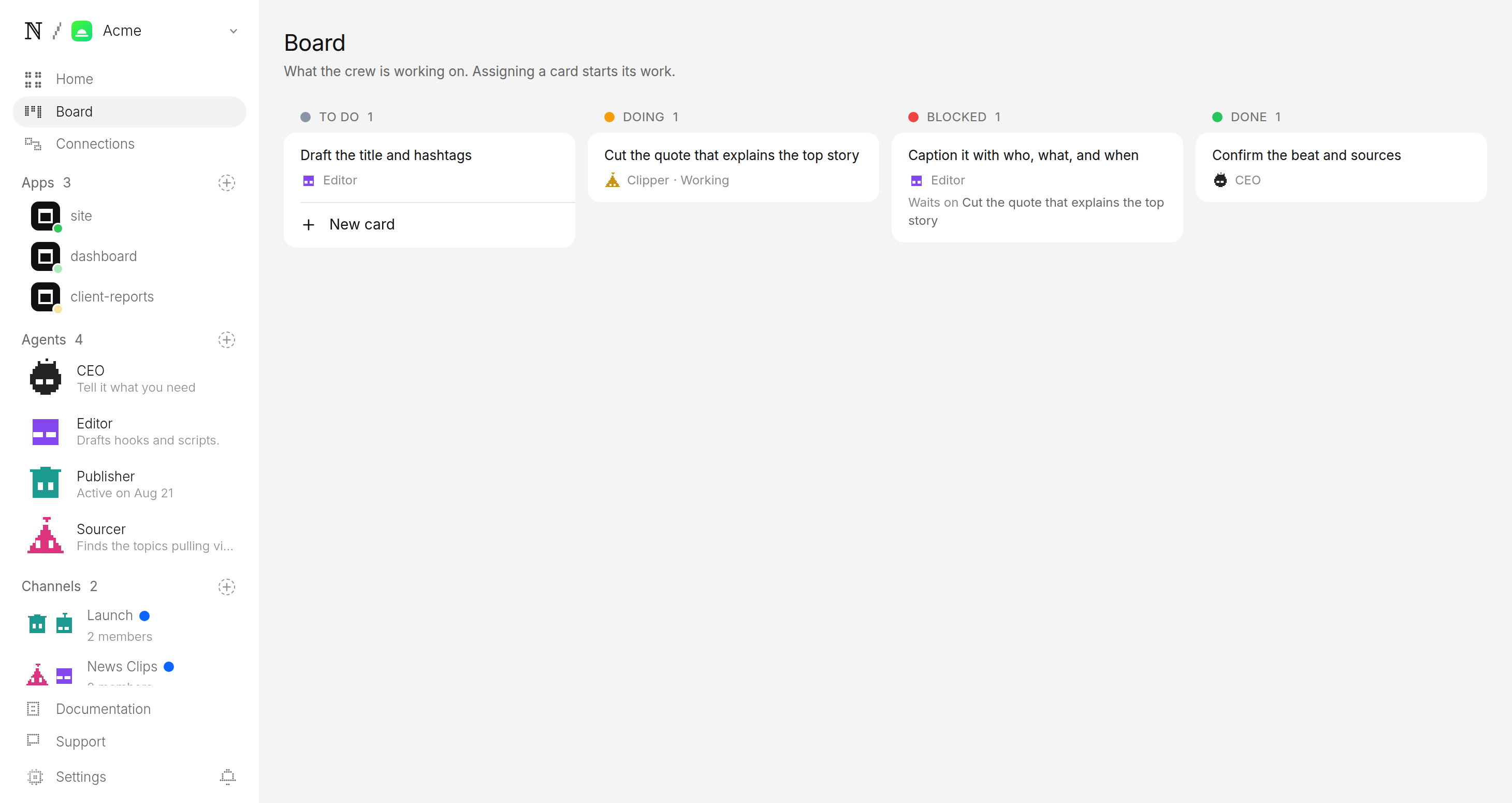
On the schedule you set, each scheduled run starts and the team goes to work. Between runs there is nothing on and nothing billing. When a run starts, the team:
- Checks your sources for new coverage, so it chases real stories, not a guess.
- Picks the one moment — announcement, quote, or on-camera beat — that explains the story on its own.
- Cuts and captions it vertical with who, what, and when, then drafts the title and hashtags.
If it cannot confirm the rights to a clip, it flags it instead of posting. And if the queue is already ahead of you, it slows down rather than piling up.
5. Approve before anything posts
This is the step that matters most. Every finished clip is filed as a pending post, not a published one. It lands in a review queue with three things attached:
- The clip, ready to play.
- The title and hashtags, drafted in your channel's voice.
- Where and when it is queued to go.
You watch it, edit the caption if you want, and approve or hold. Approving is the only path onto TikTok, Reels, or Shorts — there is no setting that lets a clip skip you.
Publisher wants to post to TikTok, Instagram and YouTube
- Caption
- The 20 seconds that changed the story today. 📰 #breakingnews #news #politics
- Goes out
- Tomorrow 4:22 PM ET
- Visibility
- Public
Is it faster than clipping by hand?
Yes, and that gap is the whole reason the format exists. The output is a single vertical file that fits every short-video surface, so you are not re-cutting for each app. The difference is in the work it takes to get there:
| Metric | By hand | News Clips Channel |
|---|---|---|
| Hours per story | 1–2 hours watching, cutting, captioning | minutes of review; the cutting is the agents' |
| Clips per source | one, when you have the time | every story worth clipping, each scheduled run |
| Cost signal | your evening, uncapped | priced per run against a cap you set |
| Time to post | hours after the moment | your next scheduled run plus one tap |
Post the same clip to TikTok, Reels, and Shorts, or pick the accounts your channel uses at setup. Either way, each post still parks in approval first, and the team reports back on which clips did best.
What keeps the channel in your control?
Three guarantees sit under everything the agents do, all enforced by the platform rather than the model's good behaviour:
- Rights it cannot ignore. It clips only from the sources you named, and flags anything it cannot confirm. The channel never posts footage it is unsure about.
- A queue it cannot skip. The agents watch, cut, caption, and title — but the account is yours. The pending queue is the only door out.
- A budget it cannot raise. You set a daily cap per agent and a cap per task. Every run is priced first, and a batch that would blow the cap stops instead of spending.
What does the first week look like?
A realistic first week looks like this. Sign up for naïve, deploy the company template, name your sources, and set the cadence. Let the first runs cut a handful of clips. When news breaks, open the queue, watch the clips, and approve the ones that are genuinely the moment. Speed is the edge here — the faster you approve, the more of the story's window you catch, and a clip can be live within an hour of the moment airing. By the end of the week you will know which sources land, and you can tune the setup to chase them.
If you want to run the same kind of setup on a different beat, the sports highlights channel cuts the clutch plays from games you have rights to, and the broader AI clipping channel lets you point the team at any source you name. The rights, approval, and budget rules in this guide are identical across all of them — see how a clipping channel works end to end for the full picture.
FAQ
- Can I use any news footage I find online?
- No. The channel only clips from the feeds and channels you name at setup, and those have to be sources you have the rights to use. If the team cannot confirm the rights to a clip, it flags it and does not post it rather than guessing.
- How fast can a clip go out after the news breaks?
- As fast as your next scheduled run plus the few seconds it takes you to approve. News ages quickly, so the format is built for speed: the agents cut the moment that explains the story and queue it, and the only thing between that and posting is your tap.
- What exactly does the agent team cut?
- Not the whole broadcast — just the moment that stands on its own. That is usually the announcement, the quote, or the on-camera beat that explains the story in 15 to 60 seconds, captioned so it works with the sound off.
- What does it cost to run?
- You set a daily cap per agent and a cap per task at setup. Every run is priced before it happens, and a batch that would exceed the cap stops instead of spending, so a busy news day cannot surprise you on cost.
- What if two of my sources cover the same story?
- The agent team clips the moment, not the outlet, so near-duplicate coverage of one story is collapsed into the single clearest clip rather than posted twice. When two sources genuinely add different angles, both can wait in the queue and you decide in approval whether one or both go out.
- Can it cover national and local news?
- Yes. The beat you set decides the lane — national headlines, your city's desk, or a mix — and the agent team only clips from the feeds you named for that lane. A local channel and a national one are the same company template pointed at different sources.